

HOW-TO
Create your workspace
Set up the organisation workspace that holds your team's private AI catalogue, then open the catalogue and add a first asset.
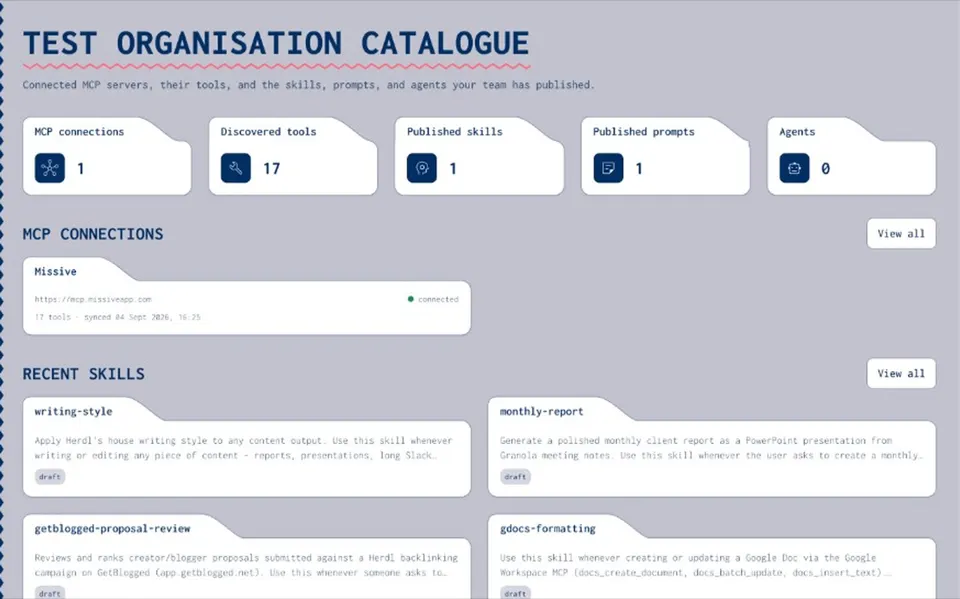
CONTEXT
What a workspace is
- Organisation tenant
Your organisation is the workspace — the tenant for the private catalogue.
- Who sees what
Groups and folders organise visibility inside that catalogue.
- Not a marketplace
Joyst is built for organisation catalogues, not a personal public store.
STEPS
Create your workspace
- Create your account
Sign up at accounts.joyst.app.
- Open the product
Go to dash.joyst.app — your organisation is the workspace for the private catalogue.
- Open the catalogue
Confirm you can browse the org catalogue. Groups and folders organise who sees what.
- Add a first asset
Add a prompt or skill you already use. That is the success state for this setup.
READY CHECK
Check your workspace is ready
- Catalogue opens
You can open the organisation catalogue in the product.
- First asset added
You can add a prompt or skill — you do not need every asset type yet.
- Invite later
Teammates can wait. Share when ready; see pricing for seats.
NEXT STEPS
Choose what to do next
- Get started
First-run orientation if you want the wider path before diving into assets.
Get started - Resources hub
All how-to and what-is guides for the private catalogue.
Resources - Create a prompt
Create and version a prompt in the org catalogue.
Prompts how-to - Add a skill
Add and sync a skill for the team.
Skills how-to - Sharing and permissions
When you are ready to invite or share — private, group, and org tiers.
Sharing guide
Pricing — seats when you invite
PricingWorkspace setup FAQ
Joyst is built for organisation catalogues. Your organisation is the tenant / workspace for the private catalogue — not a personal marketplace.
Sign up at accounts.joyst.app, then open dash.joyst.app.
You can open the catalogue and add a first asset — a prompt or a skill.
Invite later when you are ready. Use the sharing and permissions guide for how sharing works, and pricing for seats.
UI labels may vary by release. This guide stays at high-level verified steps — it does not invent Settings paths or control names.
Create your account and open the catalogue
Sign up, open your organisation workspace, and add a first prompt or skill.
- Organisation private catalogue
- Groups and folders for visibility
- Invite teammates when ready